
Microsoft Word
Opens soonFor Microsoft 365, Office 2021 or later, and Office 2019 Retail on Windows
Join the waitlist
Public downloads are not open yet
Download
Textmolt is running as an invite-only early access: the Word add-in is live for invited users, and new accounts currently need an invite code. Join the waitlist — invites go to the list first, with a Pro trial on your new account.
Join the waitlist and you get
Your invite says how long the trial lasts.
We'll email you your invite, and once more when public downloads open. Nothing else.Privacy
For Microsoft Word on Windows.
Choose Your Platform
For Microsoft 365, Office 2021 or later, and Office 2019 Retail on Windows
Public downloads are not open yet
Textmolt doesn’t support WPS Office yet. We’ll say so here when it does.
System Requirements
Install and set up
If you have an invite, use the installer files you received with it. There are two ways to install the Word add-in; both end with the same one-time step in Word.
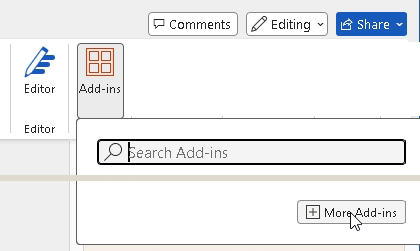
On the Home tab, click Add-ins, then More Add-ins at the bottom of the panel.
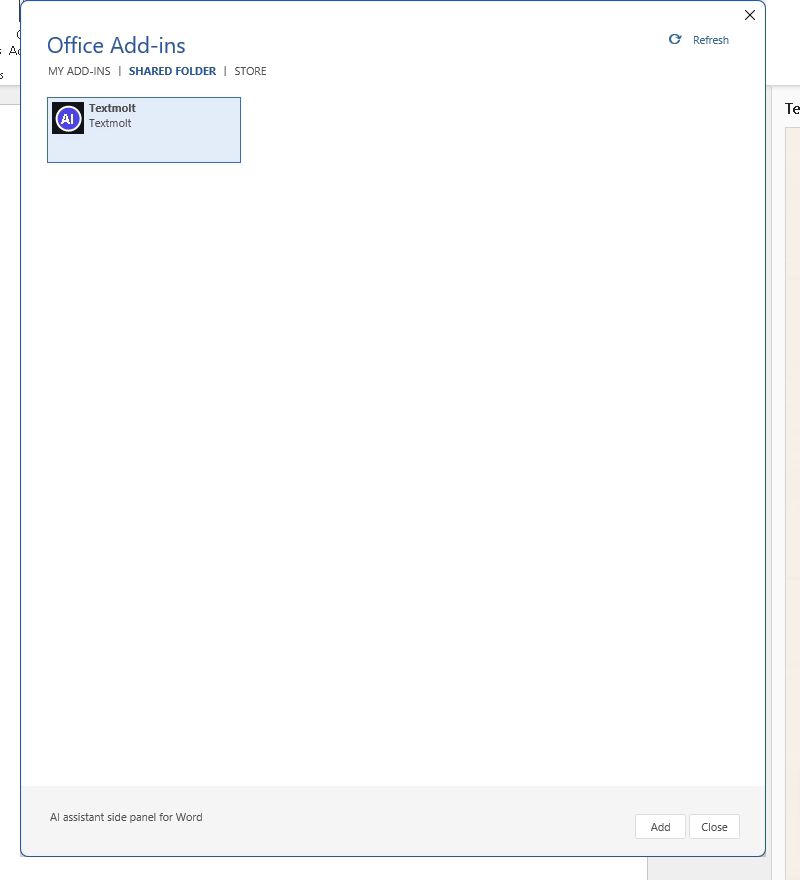
In the Office Add-ins dialog, open SHARED FOLDER, select Textmolt and click Add. From then on the Textmolt tab loads by itself.
No Add-ins button on the Home tab?
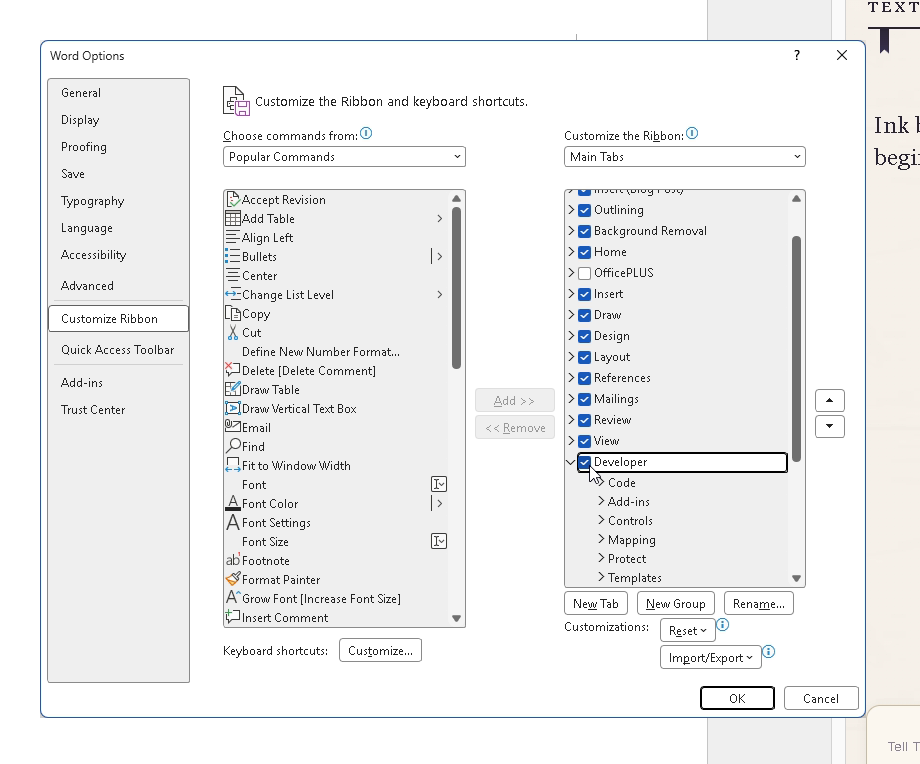
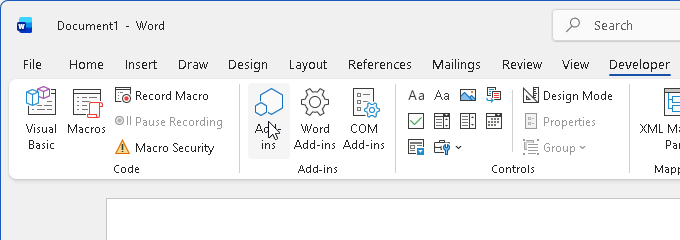
Older versions of Word open the same dialog from the Developer tab. Turn the tab on under File → Options → Customize Ribbon by ticking Developer, then click Developer → Add-ins and continue with step b.
Click Textmolt → Open Sidebar, enter your email and the 6-digit code we send. Creating a new account needs your invite code.
For the library features, install Viamolt (Viamolt-Companion-…-setup.exe, also in the Windows bundle) and keep Zotero 7 running with Settings → Advanced → “Allow other applications on this computer to communicate with Zotero” turned on. Then open the library panel in the sidebar, click Continue pairing, and type the 8-character code it shows into Viamolt. Viamolt's own window is in Chinese for now.
The sidebar loads from our servers, so you get the latest version by reopening it — no reinstall needed.
Windows Settings → Apps → Installed apps → “Textmolt for Word”, or right-click uninstall.bat in the extracted folder → Run as administrator.
If something doesn't work
install.bat probably didn't run as administrator. Run it again as administrator, or add the folder yourself: File → Options → Trust Center → Trust Center Settings → Trusted Add-in Catalogs, add %APPDATA%\Textmolt\WordAddin, tick Show in Menu, then restart Word.
Install Microsoft's WebView2 Runtime (Evergreen Standalone, x64) and restart Word. Office 2019 Volume License and Office 2016 or earlier can't run the add-in — WebView2 won't help there; they need Microsoft 365 or Office 2021 or later.
File Verification
Every public release ships with a SHA-256 checksum published on this page, so you can confirm your download is exactly what we built.